
Joshie Christian, VP Education
Hi all,
As part of Trans Awareness Week this year, I wanted to take a sec to gather together all the up-to-date information around making sure the right names are used and displayed across the University and the Students’ Union.
Many students and Sabbs have worked on making sure correct names are used across every single webpage and system that our students interact with. One thing that I know we still need to work on (and perfectly suited for our Transgender Awareness Week campaign) is awareness itself; we need to make sure students are aware of the multiple (overlapping and sometimes confusing) methods for changing their name on university systems.
Whether you want to use a different name, switch your student account over to using a nickname, or just want to get caught up so you can support your friends and course-mates, I hope you’ll take the time with me to find out how names are handled across the university. We’ll cover where changes do and don’t apply, and how to report any issues you spot. Let’s make sure deadnaming is stamped out across every Southampton IT system!
Changing your legal name with the university.
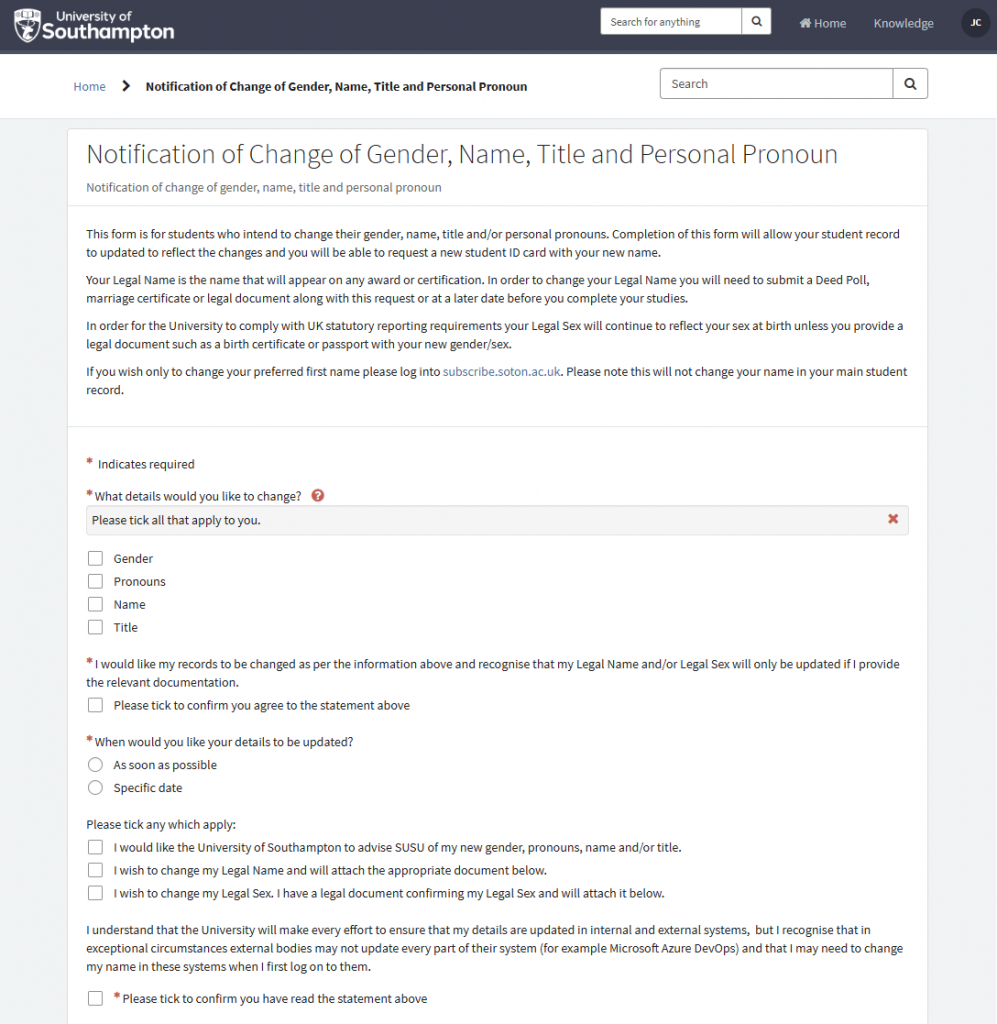
The first system I want to cover is the form provided by the University which allows students to change the Gender, Pronouns, Name, and Title that are associated with their student record (the data about you that is stored by the university). The form is hosted on the service-now webpage, which you can log in to with your regular student email address and password.
Changing your Gender or Name through this method, however, requires you to provide specific documents or forms of evidence. I’ll give some more details below.
Completing this form should apply this change to every single university system, update the name that is used in all the emails you receive, and even ensure that your new name appears on your degree certificate.
Once you change any details through this form, you’ll also be able to request a new student ID card (for free – select ‘faulty undamaged’ as your reason for replacement) to ensure this is up to date too!
Gender
Selecting the option to change the gender on your student record allows you to select between Agender / Male / Female / Non-Binary / Other, although unfortunately there is not an option to type in any other gender identities if you select ‘Other’.
If you are changing the gender on your record, you will also be asked “Does your gender identity match your sex as registered at birth?”, which gives you the options Yes / No / Prefer not to say.
The form then prompts you to agree with a statement that explains that you “recognise that your Legal Sex will only be updated if you provide the relevant documentation” – i.e., that you won’t be able to change this from your assigned sex at birth unless you can upload a legal document like a birth certificate, passport, or similar, that shows your new gender (this will be your ‘sex’ on most types of documentation). The form doesn’t explicitly state whether a Gender Recognition Certification (or similar document) can be used for this process, but since this is a legal document, this should also be suitable.
Pronouns
When changing the pronouns on your student record, you can select between He/His, She/Hers, and They/Theirs. The pronouns on your record are visible to staff working at Student Hub, and at some other student services, but aren’t visible to the academic staff in your faculty.
Name
This option allows you to set a new First Name, new Middle Name(s), and a new Family Name. You can also leave the Middle Name field blank to delete any Middle Names currently set on your record.
When changing your name, you are once again prompted to agree with a statement that explains that you “recognise that your Legal Name will only be updated if you provide the relevant documentation” – you will also not be able to change the name on your student record through this form unless you can upload a legal document. This could be a birth certificate or passport that shows your new name, but you can also submit a Deed Poll or alternative documentation like a marriage certificate.
Title
This option gives you a text box to write in any title of your choice.
You then have some more options – the next section of the form allows you to either request that your details are updated as soon as possible, or whether you’d like to select a specific date for the changes to take effect.
There are then three more boxes you may or may not wish to tick:
- “I would like the University of Southampton to advise SUSU of my new gender, pronouns, name and/or title.” – The Student Union has separate webpages to the university, a separate marketing team, and has lots of separate systems like Groups Hub and the Elections / Voting pages. If you want the changes to be sent to us so that your details are updated across everything digital at SUSU, you’ll need to select this box!
- “I wish to change my Legal Name and will attach the appropriate document below.” – If you have made alternations to your name, you will need to select this box and use the file upload tool at the end of the form.
- “I wish to change my Legal Sex. I have a legal document confirming my Legal Sex and will attach it below.” – If you have made alterations to your Gender, you will need to select this box and use the file upload tool.
Changing your preferred First Name via Subscribe
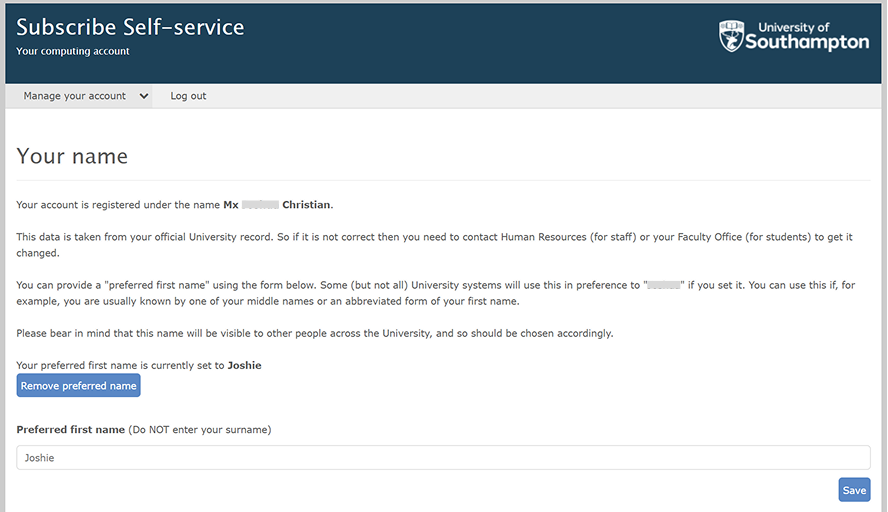
The second system to discuss is called “Subscribe Self-service”. Subscribe is the webpage you are linked to when you join the university that you use to set up your university Microsoft Account.
To edit your name through this service, select “Sign in to manage your existing account”, log in with your regular student email address and password, and select “Your preferred name” on the “Managing your account” page.
This service is there to give you the option to set one thing; Subscribe allows you to add a Preferred First Name to your student record. Unlike the Change of Details form, this doesn’t override the First Name stored in your student record; instead, it adds data to a second field, containing the name you set via Subscribe.
University webpages and systems might use the data from Banner (your student record) in different ways. Some systems ‘read’ the data directly from your student record every time you sign in, whilst other systems store a copy of your student record. Systems that store a copy of student data will update regularly (this will usually be every 24 or 48 hours) by checking for changes to your data on Banner.
Whenever you, or a member of university staff, see your name on a digital system, the name displayed is your Preferred First Name. If you haven’t set one through the Subscribe system, the default used is the First Name on your student record. This includes when you log into a University Desktop, the name you’d see at the Student Hub, Library Website, and Tech Hub, the name displayed when you join a Teams call or Team chat, and the name that displays on your Outlook account (this applies for both sending and receiving emails). Unfortunately, this won’t update the name of the sender/recipient of any emails you sent or received before setting your name via Subscribe.
Changing your name via Subscribe won’t entitle you to a new Student ID card or change the name displayed on awards or certificates, as there are a few places where the university requires the use of the Legal First Name attached to your student record.
Using the right names at SUSU.
There are loads of places your name might appear through SUSU pages (susu.org) and systems – you might be on a society committee, appear on the list of Academic Reps, or see your name at the top of loads of the emails we send you. SUSU always uses your Preferred First Name if you set one via Subscribe, also defaulting to the First Name on your student record if you haven’t set one.
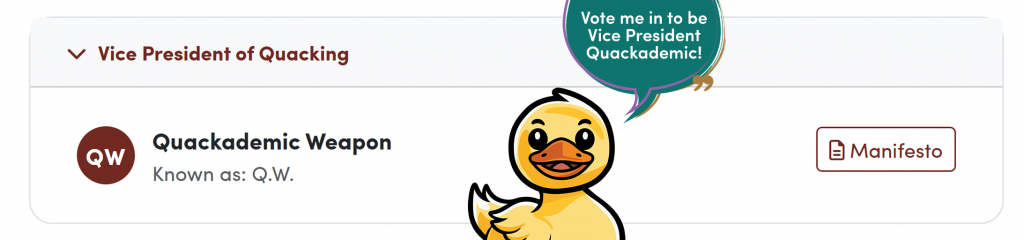
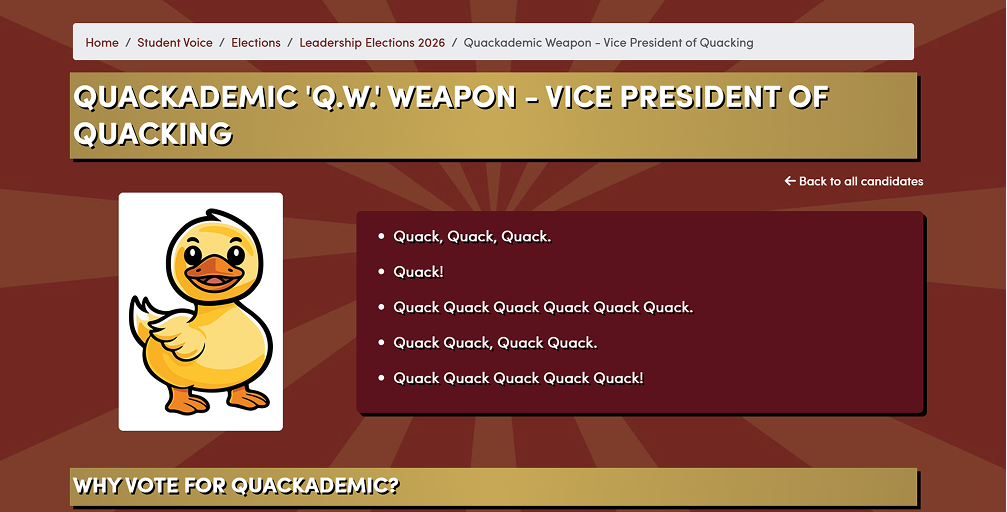
When you apply for an Academic Rep role, you can set a ‘nickname’. A nickname on the SUSU page doesn’t override the first name we display on the page, it just adds that nickname onto your page (We recently changed the voting nominations page to make this clearer).
So, suppose Quackademic Weapon ran for a Sabbatical Officer role next year, and set “Q.W.” as a nickname when he submitted his nomination; his manifesto page would have the title “Quackademic ‘Q.W.’ Weapon – Vice President of Quacking”, and the main page would look something like this:
What to do if something is wrong?
Since the Subscribe system was introduced in 2019, there have sadly still been many instances of where students spot systems using the wrong names, or receive email addressed to them incorrectly. As we continue to point these out, we can narrow down all the websites and systems that aren’t set up to use the correct name from your student record, and we can make sure that things get fixed. Over the last couple of years:
We have been able to fix:
- Deadnames appearing on the library laptop loans system.
- Deadnames displayed on the queue screens at the Student Hub.
- Many instances of email being addressed to the wrong name.
- The wrong name appearing on the “In-Place Archive” folder in your Outlook inbox.
- The wrong name appearing on the “Online Archive” folder in your Outlook inbox.
- And several more…
We are still working on fixing:
- Some Obscure Microsoft systems that don’t allow for any changes to the name used to create accounts or profiles (such as Microsoft Azure DevOps).
- A few places where emails are still addressed to the wrong name.
So, if you see any deadnaming, please continue to let us know. You can contact your Sabbs (You could email your Union President, or even the VP Education for issues on Blackboard or in the library). You can also submit a You Make Change, and your Sabb team will decide who’s best to get it sorted. Let’s make sure the right names are used across the University, without exceptions.
The iSolutions team have also created this Knowledge Base Article that will be kept up-to-date with the latest information for both staff and students on how to make changes to your Name, Last Name, Title, Post-Title, and more!
All the best,
Joshie Christian
VP Education